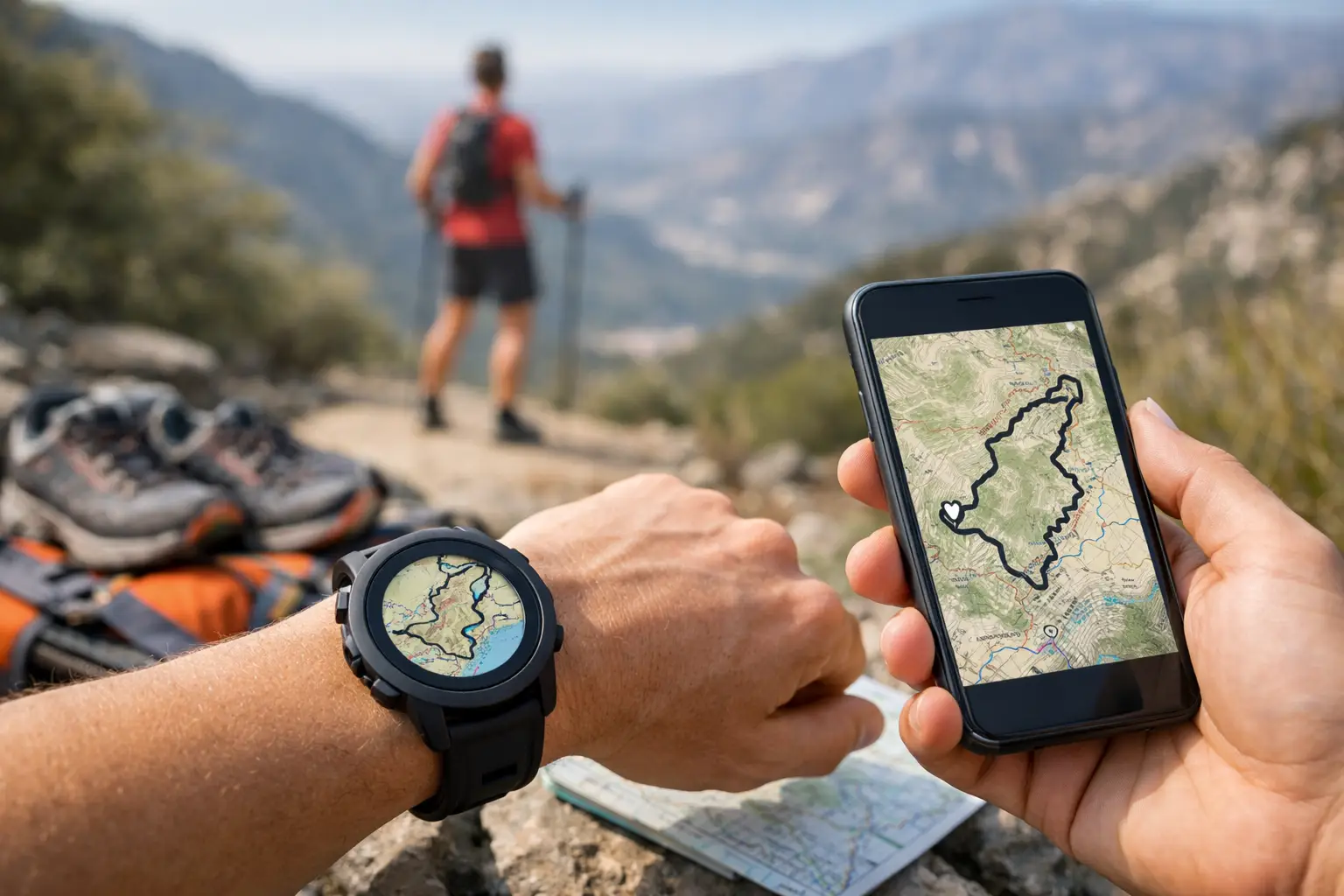
Miss one turn in a trail race and your pacing plan can unravel fast. If you’re asking can Garmin import GPX, the short answer is yes - but the real answer depends on which Garmin device you use, how the file was built, and whether you want a clean route or a frustrating mess of breadcrumbs.
For trail runners, that distinction matters. A GPX file is only useful if it lands on your watch correctly, follows the actual course, and gives you something reliable when you’re tired, off-script, and deep into a climb. Garmin can work well here, but you need the right import path.
Can Garmin import GPX files?
Yes, Garmin can import GPX files, but not always in the exact way runners expect.
Most Garmin watches do not simply take a raw GPX file dropped straight onto the device and instantly turn it into a polished course. In most cases, the GPX file needs to go through Garmin Connect first, where it becomes a course that can then sync to your watch. Some devices are more flexible than others, and some outdoor handhelds handle GPX files more directly, but for GPS running watches, Garmin Connect is usually the cleanest route.
That matters because a GPX file can contain different types of data. Sometimes it includes a track, which is essentially a line of recorded points. Sometimes it includes a route with waypoints. Garmin watches generally behave best when that data is converted into a course that the watch understands for navigation.
If your goal is race-day navigation, don’t think only about whether Garmin accepts the file. Think about whether the file will display clearly, sync reliably, and stay usable when you need it most.
How Garmin GPX import usually works
For most trail runners, the process is simple on paper. You get the GPX file, import it into Garmin Connect, save it as a course, and sync that course to your watch. Then you open navigation or courses on the watch and select it before your run or race.
The cleanest workflow usually looks like this:
- Download the GPX file from your race organizer or planning platform.
- Open Garmin Connect on the web or app.
- Import the file as a course.
- Review the map and distance before syncing.
- Send the course to your watch.
- Confirm it actually appears on the device.
That last step gets skipped too often. Don’t assume the sync worked because the app says it should have. Open the course list on your watch and verify the route is there before race morning.
Importing a GPX into Garmin Connect
Using Garmin Connect on desktop
Desktop is often the least frustrating option, especially if you want to inspect the course closely. In Garmin Connect, you can usually go to Training and Planning, then Courses, and look for an import option. Upload the GPX file, let Garmin process it, and then review what it created.
This review step matters. Sometimes Garmin smooths the route well. Sometimes it slightly alters the line, cuts a switchback, or interprets odd GPS points in a way that changes the course shape. If the imported course does not match the race route, don’t force it. Start over with a better file.
Using the Garmin Connect app
The mobile app can work, but the exact process varies by device and app version. In some cases, importing on mobile feels less transparent than desktop. It’s fine for quick setup, but if you’re loading a technical mountain race with critical turns and long off-grid sections, bigger-screen review is the safer play.
Once the course is saved, sync your watch and check that the route transferred fully.
Why some GPX files work better than others
Not all GPX files are built for the same job.
A race organizer might publish a GPX exported from course design software. Another might share a file pulled from someone’s training run. Both are technically GPX files, but they are not equally reliable. A clean course file usually has better point structure, fewer recording errors, and a route line that matches the intended course rather than one runner’s watch drift through tree cover or canyon walls.
For trail runners, file quality matters even more because terrain creates GPS noise. Dense forest, steep rock walls, and narrow singletrack can all produce ugly data. If the GPX has bad geometry, your Garmin may still import it, but the route can look rough, alert inconsistently, or show distance that doesn’t line up with reality.
This is one reason many runners prefer race-ready exports from platforms built around actual course prep rather than generic file sharing. The goal is not just to load a line. The goal is to load the right line.
Can Garmin import GPX directly to the watch?
Sometimes, but for most running watches, that’s not the best assumption.
Some Garmin devices support file transfer methods that let you move GPX or FIT files more directly through a computer connection. Outdoor handheld units tend to be more forgiving here. But if you use a Forerunner, Fenix, Enduro, Epix, or similar watch for trail racing, Garmin Connect remains the standard workflow.
Even when direct transfer is technically possible, it may not be the most stable option. File structure, folder placement, and device behavior can vary. If you want the route to show up properly under navigation and behave like a usable course, importing through Garmin Connect is usually safer.
Common Garmin GPX import problems
The course imports, but the distance looks wrong
This usually comes down to source data. The GPX may have extra points, bad elevation corrections, or GPS drift. Compare it against the official course specs. If your race is listed as 50K and Garmin shows 46 miles, something is off.
The route line looks jagged or cuts off sections
That can happen when the GPX has poor point density or broken segments. It can also happen when Garmin simplifies the route during import. Review the course map before trusting it.
The watch doesn’t show the course after sync
Often this is a sync issue, not an import issue. Re-sync, restart the watch, and check the correct menu on the device. Some watches store courses under navigation, others under training or saved locations depending on model.
Turn alerts are inconsistent
A GPX track is not always the same as a turn-by-turn course. On many trail routes, especially off-road, you may get breadcrumb navigation rather than perfect turn prompts. That’s normal. For technical races, visual route fidelity matters more than expecting road-style directions.
What trail runners should check before race day
A successful import is only the start. Before you trust your watch with a race course, check four things: the route shape, total distance, elevation profile, and course availability on the device.
Then go one step further. Start a test activity and open the course screen. Make sure the route displays clearly and that your watch can access it without extra setup. If your race starts at 4:30 a.m. in the dark, that is not the time to learn your navigation menu.
Battery planning matters too. Navigation drains more power than standard activity recording on many Garmin watches. If you’re racing an ultra, especially with full-day or overnight exposure, confirm that your battery mode still supports course navigation.
Best file format for Garmin: GPX, TCX, or FIT?
If all you have is GPX, that’s usually enough. Garmin can work with it through Garmin Connect.
Still, GPX is not always the ideal format. TCX and FIT can sometimes carry more structured course or workout data depending on the use case. For pure trail race navigation, GPX is common and practical, but the best format depends on what your source platform exports and how much detail your watch model supports.
The bigger issue is less about format and more about validation. A clean GPX beats a sloppy file in a supposedly better format every time.
The real question is whether you trust the course on your wrist
Can Garmin import GPX? Yes. For most trail runners, that answer is good enough to get started but not good enough to race on without checking the details.
Your watch is a tool, not a rescue plan. If the file is clean, the course is verified, and the sync is done before race week chaos kicks in, Garmin can give you reliable on-course guidance. If the file is sketchy or you never confirm what landed on the device, you’re gambling with your pacing, your splits, and sometimes your finish.
Know the trail before you run it. Then make sure the line on your wrist is the same one you studied at home.